> ## Documentation Index
> Fetch the complete documentation index at: https://api.superseeded.ai/docs/llms.txt
> Use this file to discover all available pages before exploring further.
# WordPress Plugin
> Add the SuperSeeded upload widget to your WordPress site
## Overview
The SuperSeeded Upload plugin provides a seamless way to add file upload capabilities to your WordPress site. It includes both a Gutenberg block and shortcode, making it easy to embed the upload widget anywhere on your site.
Use `[superseeded_upload]` in any post or page
Native block editor integration
API key never exposed to frontend
Themes, file types, and size limits
## Installation
### Manual Installation
1. Download the plugin from the [API repository](https://github.com/superseeded/api/tree/main/wordpress-plugin)
2. Upload to `/wp-content/plugins/superseeded-upload/`
3. Activate via **Plugins > Installed Plugins**
### File Structure
```
superseeded-upload/
├── superseeded-upload.php # Main plugin file
├── embed.min.js # SuperSeeded embed SDK
├── js/
│ ├── init.js # Widget initializer
│ └── block.js # Gutenberg block
└── readme.txt # Plugin readme
```
## Configuration
Navigate to **Settings > SuperSeeded Upload** to configure the plugin.
### Required Settings
| Setting | Description |
| ---------------- | ----------------------------------------- |
| Platform API Key | Your SuperSeeded API key (from dashboard) |
### Optional Settings
| Setting | Default | Description |
| ---------------------- | ---------------------------- | ---------------------------------------------------------------- |
| Merchant Token Mode | `WordPress User` | How unique merchant tokens are generated for billing (see below) |
| Theme | `light` | Widget theme (`light` or `dark`) |
| Allowed File Types | `.csv,.xlsx,.xls,.json,.pdf` | Comma-separated extensions |
| Max File Size | `104857600` | Maximum size in bytes (100MB) |
| Show Debug Info | `false` | Display enrichment results accordion and console logs |
| Post-Upload Processing | All enabled | Select which API routes to call after upload completes |
### Merchant Token Mode
Controls how unique merchant tokens are generated for billing purposes:
| Mode | Description |
| -------------------------------- | --------------------------------------------------------------------------------------------- |
| **WordPress User** (Recommended) | Unique token per logged-in user. Falls back to session for guests. Best for membership sites. |
| **Session Token** | Unique token per browser session. Works for all visitors including guests. |
| **Site-Wide** | Single token for entire site. Use if the WordPress site belongs to one of your customers. |
Merchant tokens are computed server-side from WordPress user/session identity and cannot be manipulated by the frontend. This ensures accurate per-user billing.
### Post-Upload Processing Routes
The plugin can automatically call API routes after a file upload completes. Routes are discovered dynamically from the API and can be enabled/disabled in settings.
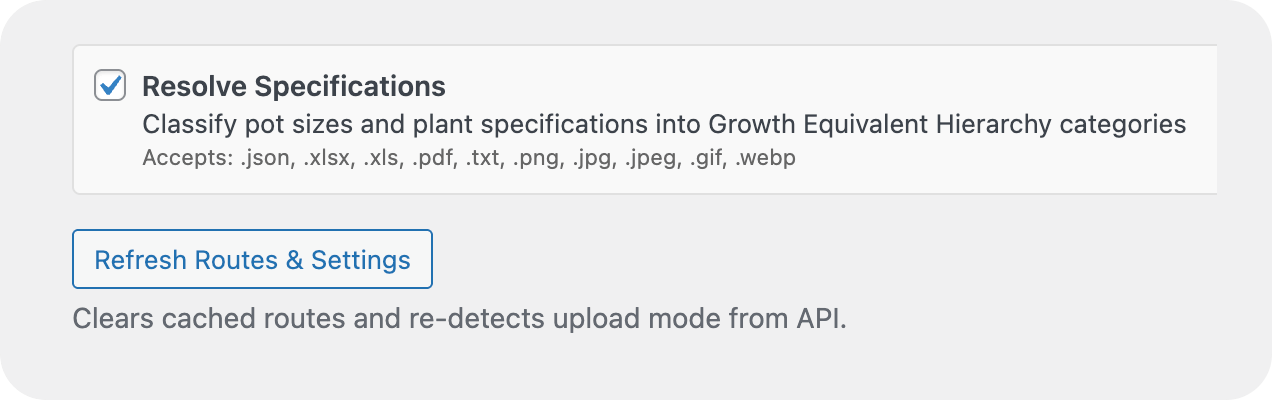 Available routes include:
* **Resolve Specifications** - Classify pot sizes and plant specifications (supports JSON, Excel, PDF, images)
Click **"Refresh Available Routes"** to fetch the latest routes from the API. Routes are cached for 1 hour.
Your Platform API key is stored securely on the server and proxied through WordPress REST API. It is never exposed to the frontend.
## Usage
### Shortcode
Add the upload widget to any page or post:
```
[superseeded_upload]
```
#### Shortcode Attributes
| Attribute | Description | Example |
| --------- | ---------------------- | --------------------- |
| `theme` | Override theme | `theme="dark"` |
| `class` | Additional CSS classes | `class="my-uploader"` |
Merchant tokens are computed server-side based on the Merchant Token Mode setting and cannot be overridden per-shortcode for security reasons.
#### Example with Attributes
```
[superseeded_upload theme="dark" class="custom-uploader"]
```
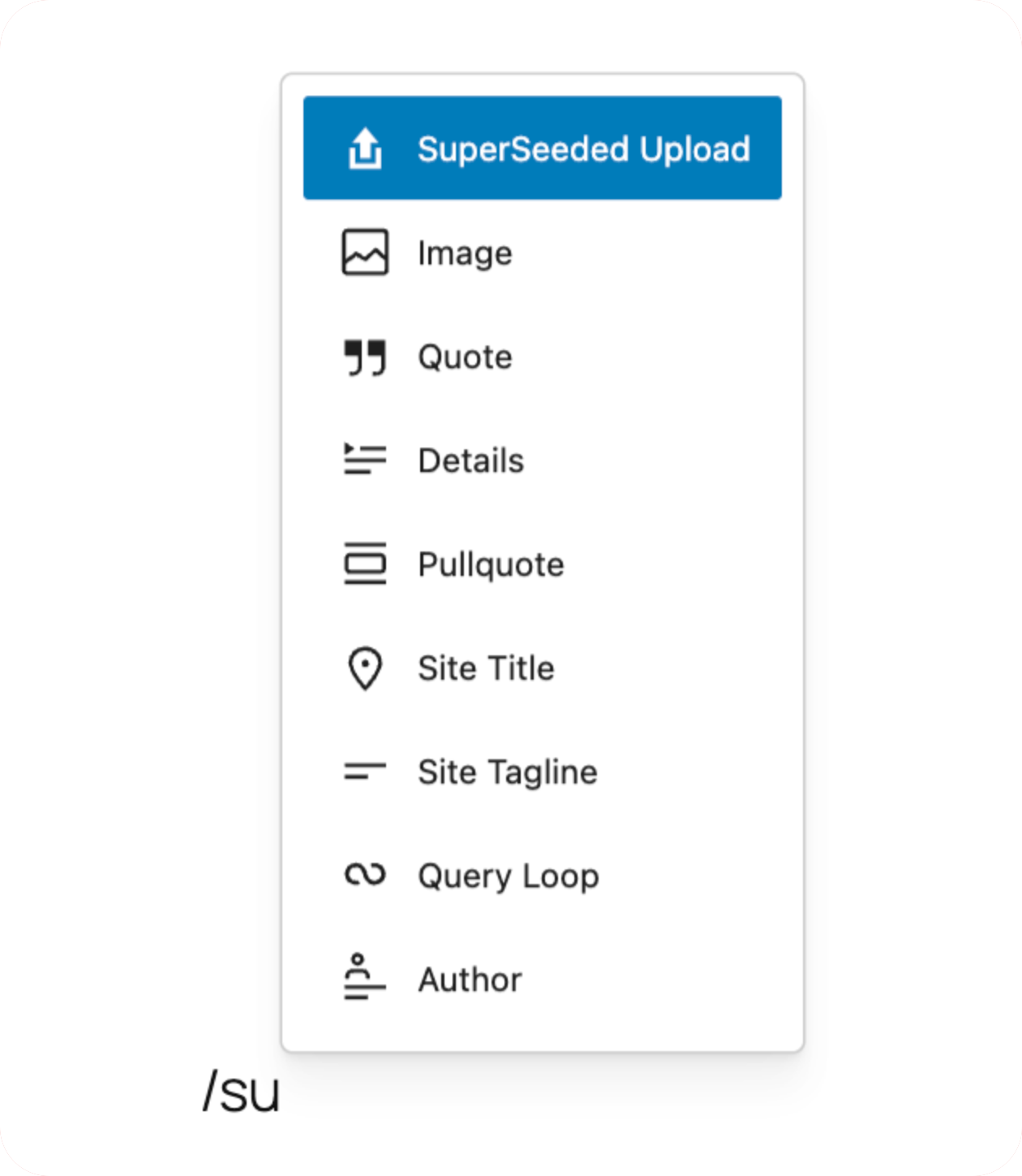
### Gutenberg Block
1. Open the page/post in the block editor
2. Click the **+** button to add a block
3. Search for **"SuperSeeded Upload"**
4. Configure options in the block sidebar
Available routes include:
* **Resolve Specifications** - Classify pot sizes and plant specifications (supports JSON, Excel, PDF, images)
Click **"Refresh Available Routes"** to fetch the latest routes from the API. Routes are cached for 1 hour.
Your Platform API key is stored securely on the server and proxied through WordPress REST API. It is never exposed to the frontend.
## Usage
### Shortcode
Add the upload widget to any page or post:
```
[superseeded_upload]
```
#### Shortcode Attributes
| Attribute | Description | Example |
| --------- | ---------------------- | --------------------- |
| `theme` | Override theme | `theme="dark"` |
| `class` | Additional CSS classes | `class="my-uploader"` |
Merchant tokens are computed server-side based on the Merchant Token Mode setting and cannot be overridden per-shortcode for security reasons.
#### Example with Attributes
```
[superseeded_upload theme="dark" class="custom-uploader"]
```
### Gutenberg Block
1. Open the page/post in the block editor
2. Click the **+** button to add a block
3. Search for **"SuperSeeded Upload"**
4. Configure options in the block sidebar
 ## JavaScript Events
The widget dispatches custom DOM events that you can listen to for integration with your theme or other plugins:
```javascript theme={"theme":"github-dark"}
// Get the upload container
const container = document.querySelector('.superseeded-upload-container');
// File added
container.addEventListener('superseeded:file-added', (e) => {
console.log('File selected:', e.detail.name);
});
// Upload progress
container.addEventListener('superseeded:progress', (e) => {
console.log(`Progress: ${e.detail.percentage}%`);
});
// Upload complete
container.addEventListener('superseeded:complete', (e) => {
console.log('Upload complete:', e.detail.id);
console.log('TUS URL:', e.detail.uploadURL);
console.log('File URL:', e.detail.fileUrl);
});
// Upload error
container.addEventListener('superseeded:error', (e) => {
console.error('Upload failed:', e.detail.error);
});
// Specs resolved (JSON files only) - enrichment data ready
container.addEventListener('superseeded:specs-resolved', (e) => {
console.log('Enrichment complete:', e.detail.specsData);
// Access enriched items, usage info, etc.
});
// Individual route completed
container.addEventListener('superseeded:route-complete', (e) => {
console.log(`Route ${e.detail.route.name} completed:`, e.detail.result);
});
// Individual route failed (other routes continue)
container.addEventListener('superseeded:route-error', (e) => {
console.error(`Route ${e.detail.route.name} failed:`, e.detail.error);
});
// All routes finished processing
container.addEventListener('superseeded:routes-complete', (e) => {
console.log(`Routes complete: ${e.detail.successful} succeeded, ${e.detail.failed} failed`);
console.log('All results:', e.detail.results);
});
```
### Event Details
| Event | Detail Properties |
| ----------------------------- | ------------------------------------------------------------------------------------------- |
| `superseeded:file-added` | `{ id, name, size, type }` |
| `superseeded:progress` | `{ id, percentage, bytesUploaded, bytesTotal }` |
| `superseeded:complete` | `{ id, uploadURL, fileUrl, name }` - `uploadURL` is TUS endpoint, `fileUrl` is download URL |
| `superseeded:error` | `{ id, error }` |
| `superseeded:server-notified` | `{ success, message, data }` |
| `superseeded:specs-resolved` | `{ id, fileUrl, fileName, specsData }` - fired when verify-pot-sizes route completes |
| `superseeded:route-complete` | `{ fileId, route, result }` - `result` contains `{ route_id, success, data }` |
| `superseeded:route-error` | `{ fileId, route, error }` |
| `superseeded:routes-complete` | `{ fileId, results, successful, failed }` - fired when all routes finish |
## Styling
### CSS Variables
Override the default styling with CSS custom properties:
```css theme={"theme":"github-dark"}
.superseeded-upload-container {
--superseeded-primary: #4f46e5;
--superseeded-primary-hover: #4338ca;
--superseeded-background: #ffffff;
--superseeded-surface: #f5f5f5;
--superseeded-text: #1a1a1a;
--superseeded-text-muted: #666666;
--superseeded-border: #e0e0e0;
--superseeded-border-radius: 8px;
}
```
### Theme-Specific Styles
```css theme={"theme":"github-dark"}
/* Style only dark-themed widgets */
.superseeded-upload-container[data-theme="dark"] {
--superseeded-background: #0a0a0a;
--superseeded-surface: #1a1a1a;
}
```
## Dynamic Content
If you're loading content dynamically (AJAX, page builders), reinitialize widgets after the DOM updates:
```javascript theme={"theme":"github-dark"}
// After dynamic content is loaded
if (window.SuperSeededWordPress) {
window.SuperSeededWordPress.init();
}
```
## REST API Endpoints
The plugin registers REST API endpoints for token proxy and upload handling:
### Token Endpoint
Returns a delegation token for direct uploads to the SuperSeeded TUS endpoint. The merchant token is computed server-side based on the configured Merchant Token Mode.
```
POST /wp-json/superseeded/v1/token
```
**Request:**
```json theme={"theme":"github-dark"}
{}
```
**Response:**
```json theme={"theme":"github-dark"}
{
"token": "eyJhbGciOiJIUzI1NiIs...",
"tusEndpoint": "https://secure.superseeded.ai/files/"
}
```
### Upload Complete Endpoint
Called automatically when an upload finishes. Fires the `superseeded_upload_complete` action.
```
POST /wp-json/superseeded/v1/upload-complete
```
**Request:**
```json theme={"theme":"github-dark"}
{
"upload_id": "abc123",
"tus_url": "https://secure.superseeded.ai/files/abc123",
"file_name": "products.csv",
"file_size": 102400,
"file_type": "text/csv",
"merchant_id": "acme-corp"
}
```
### Resolve Specs Endpoint
Proxy for the SuperSeeded verify-pot-sizes API. Use this to process items and retrieve enriched data.
```
POST /wp-json/superseeded/v1/verify/pot-sizes
```
**Request:**
```json theme={"theme":"github-dark"}
{
"items": ["400mm AS", "20L Planter Bag"]
}
```
This endpoint proxies requests to the SuperSeeded API using your server-side API key.
**Response:**
```json theme={"theme":"github-dark"}
{
"results": [
{
"input_label": "400mm AS",
"match_confidence": "Medium",
"standard_data": {
"id": "3.2",
"type": "Pot - Square",
"stage_name": "Retail & Small Production"
}
}
]
}
```
For file uploads, the widget automatically calls the `/v1/verify/pot-sizes` endpoint directly using the delegation token and the file URL. The `superseeded:specs-resolved` event fires when enrichment completes.
All endpoints require authentication via WordPress nonce (`X-WP-Nonce` header).
## PHP Hooks
The plugin provides WordPress actions that allow other plugins and themes to react to upload events.
### superseeded\_upload\_complete
Fires when an upload completes successfully. Use this to store upload records, trigger workflows, or integrate with other systems.
```php theme={"theme":"github-dark"}
add_action( 'superseeded_upload_complete', function( $upload_data ) {
// $upload_data contains:
// - upload_id: Unique upload identifier
// - tus_url: Full TUS upload URL
// - file_name: Original filename
// - file_size: Size in bytes
// - file_type: MIME type
// - merchant_id: Merchant identifier
// - timestamp: Upload completion time
// - user_id: WordPress user ID (0 if guest)
// Example: Store in custom table
global $wpdb;
$wpdb->insert(
$wpdb->prefix . 'superseeded_uploads',
$upload_data
);
// Example: Send notification
wp_mail(
get_option( 'admin_email' ),
'New SuperSeeded Upload',
'File uploaded: ' . $upload_data['file_name']
);
}, 10, 1 );
```
### superseeded\_specs\_resolved
Fires when the verify-pot-sizes API returns enriched data from a processed request via the WordPress proxy endpoint.
```php theme={"theme":"github-dark"}
add_action( 'superseeded_specs_resolved', function( $response, $items ) {
// $response: The resolved specs response from SuperSeeded API
// $items: The original items array that was submitted
// Example: Cache the results
set_transient(
'superseeded_specs_' . md5( serialize( $items ) ),
$response,
HOUR_IN_SECONDS
);
}, 10, 2 );
```
## JavaScript API
The `SuperSeededWordPress` global object provides methods for programmatic control:
```javascript theme={"theme":"github-dark"}
// Initialize all widgets (useful after AJAX content loads)
SuperSeededWordPress.init();
// Initialize a specific container
const container = document.getElementById('my-upload-container');
SuperSeededWordPress.initializeWidget(container);
// Fetch a new delegation token
SuperSeededWordPress.fetchDelegationToken().then(function(tokenData) {
console.log('Token:', tokenData.token);
console.log('TUS Endpoint:', tokenData.tusEndpoint);
});
// Call verify-pot-sizes via WordPress proxy (for manual item arrays)
SuperSeededWordPress.resolveSpecs(['400mm AS', '20L Planter Bag']).then(function(result) {
console.log('Results:', result.results);
}).catch(function(error) {
console.error('Failed to resolve specs:', error);
});
// Call verify-pot-sizes directly using delegation token and file URL
// (This is what the widget uses internally after upload)
SuperSeededWordPress.resolveSpecsFromUpload(fileUrl, token).then(function(result) {
console.log('Results:', result.results);
});
// Notify WordPress of upload completion
SuperSeededWordPress.notifyUploadComplete(result, fileName, fileSize, fileType);
// Execute enabled routes manually (called automatically after upload)
SuperSeededWordPress.executeEnabledRoutes(fileUrl, token, file, fileId, container, fileElement)
.then(function(results) {
console.log('All routes processed:', results);
});
// Execute a single route
SuperSeededWordPress.executeRoute(routeConfig, fileUrl, token, apiBaseUrl, fileName)
.then(function(data) {
console.log('Route result:', data);
});
```
### Server Notification Event
Listen for the server's response after upload completion is recorded:
```javascript theme={"theme":"github-dark"}
document.addEventListener('superseeded:server-notified', function(e) {
console.log('Server recorded upload:', e.detail);
// e.detail contains the response from upload-complete endpoint
});
```
## Troubleshooting
### Widget Not Appearing
1. Check that the plugin is activated
2. Verify your API key is configured in Settings
3. Check browser console for JavaScript errors
### Token Fetch Failed
1. Verify your API key is correct
2. Check that the merchant ID is configured
3. Review server error logs for API responses
### Uploads Failing
1. Check file size limits in both plugin settings and WordPress/server config
2. Verify the file type is in the allowed list
3. Check browser network tab for specific error responses
## Complete Example
### Frontend Integration
Here's a complete example integrating the upload widget with a custom thank-you message:
```html theme={"theme":"github-dark"}
[superseeded_upload]
```
### Backend Integration (PHP)
Create a custom plugin or add to your theme's `functions.php` to handle uploads server-side:
```php theme={"theme":"github-dark"}
Browse the plugin files on GitHub
## JavaScript Events
The widget dispatches custom DOM events that you can listen to for integration with your theme or other plugins:
```javascript theme={"theme":"github-dark"}
// Get the upload container
const container = document.querySelector('.superseeded-upload-container');
// File added
container.addEventListener('superseeded:file-added', (e) => {
console.log('File selected:', e.detail.name);
});
// Upload progress
container.addEventListener('superseeded:progress', (e) => {
console.log(`Progress: ${e.detail.percentage}%`);
});
// Upload complete
container.addEventListener('superseeded:complete', (e) => {
console.log('Upload complete:', e.detail.id);
console.log('TUS URL:', e.detail.uploadURL);
console.log('File URL:', e.detail.fileUrl);
});
// Upload error
container.addEventListener('superseeded:error', (e) => {
console.error('Upload failed:', e.detail.error);
});
// Specs resolved (JSON files only) - enrichment data ready
container.addEventListener('superseeded:specs-resolved', (e) => {
console.log('Enrichment complete:', e.detail.specsData);
// Access enriched items, usage info, etc.
});
// Individual route completed
container.addEventListener('superseeded:route-complete', (e) => {
console.log(`Route ${e.detail.route.name} completed:`, e.detail.result);
});
// Individual route failed (other routes continue)
container.addEventListener('superseeded:route-error', (e) => {
console.error(`Route ${e.detail.route.name} failed:`, e.detail.error);
});
// All routes finished processing
container.addEventListener('superseeded:routes-complete', (e) => {
console.log(`Routes complete: ${e.detail.successful} succeeded, ${e.detail.failed} failed`);
console.log('All results:', e.detail.results);
});
```
### Event Details
| Event | Detail Properties |
| ----------------------------- | ------------------------------------------------------------------------------------------- |
| `superseeded:file-added` | `{ id, name, size, type }` |
| `superseeded:progress` | `{ id, percentage, bytesUploaded, bytesTotal }` |
| `superseeded:complete` | `{ id, uploadURL, fileUrl, name }` - `uploadURL` is TUS endpoint, `fileUrl` is download URL |
| `superseeded:error` | `{ id, error }` |
| `superseeded:server-notified` | `{ success, message, data }` |
| `superseeded:specs-resolved` | `{ id, fileUrl, fileName, specsData }` - fired when verify-pot-sizes route completes |
| `superseeded:route-complete` | `{ fileId, route, result }` - `result` contains `{ route_id, success, data }` |
| `superseeded:route-error` | `{ fileId, route, error }` |
| `superseeded:routes-complete` | `{ fileId, results, successful, failed }` - fired when all routes finish |
## Styling
### CSS Variables
Override the default styling with CSS custom properties:
```css theme={"theme":"github-dark"}
.superseeded-upload-container {
--superseeded-primary: #4f46e5;
--superseeded-primary-hover: #4338ca;
--superseeded-background: #ffffff;
--superseeded-surface: #f5f5f5;
--superseeded-text: #1a1a1a;
--superseeded-text-muted: #666666;
--superseeded-border: #e0e0e0;
--superseeded-border-radius: 8px;
}
```
### Theme-Specific Styles
```css theme={"theme":"github-dark"}
/* Style only dark-themed widgets */
.superseeded-upload-container[data-theme="dark"] {
--superseeded-background: #0a0a0a;
--superseeded-surface: #1a1a1a;
}
```
## Dynamic Content
If you're loading content dynamically (AJAX, page builders), reinitialize widgets after the DOM updates:
```javascript theme={"theme":"github-dark"}
// After dynamic content is loaded
if (window.SuperSeededWordPress) {
window.SuperSeededWordPress.init();
}
```
## REST API Endpoints
The plugin registers REST API endpoints for token proxy and upload handling:
### Token Endpoint
Returns a delegation token for direct uploads to the SuperSeeded TUS endpoint. The merchant token is computed server-side based on the configured Merchant Token Mode.
```
POST /wp-json/superseeded/v1/token
```
**Request:**
```json theme={"theme":"github-dark"}
{}
```
**Response:**
```json theme={"theme":"github-dark"}
{
"token": "eyJhbGciOiJIUzI1NiIs...",
"tusEndpoint": "https://secure.superseeded.ai/files/"
}
```
### Upload Complete Endpoint
Called automatically when an upload finishes. Fires the `superseeded_upload_complete` action.
```
POST /wp-json/superseeded/v1/upload-complete
```
**Request:**
```json theme={"theme":"github-dark"}
{
"upload_id": "abc123",
"tus_url": "https://secure.superseeded.ai/files/abc123",
"file_name": "products.csv",
"file_size": 102400,
"file_type": "text/csv",
"merchant_id": "acme-corp"
}
```
### Resolve Specs Endpoint
Proxy for the SuperSeeded verify-pot-sizes API. Use this to process items and retrieve enriched data.
```
POST /wp-json/superseeded/v1/verify/pot-sizes
```
**Request:**
```json theme={"theme":"github-dark"}
{
"items": ["400mm AS", "20L Planter Bag"]
}
```
This endpoint proxies requests to the SuperSeeded API using your server-side API key.
**Response:**
```json theme={"theme":"github-dark"}
{
"results": [
{
"input_label": "400mm AS",
"match_confidence": "Medium",
"standard_data": {
"id": "3.2",
"type": "Pot - Square",
"stage_name": "Retail & Small Production"
}
}
]
}
```
For file uploads, the widget automatically calls the `/v1/verify/pot-sizes` endpoint directly using the delegation token and the file URL. The `superseeded:specs-resolved` event fires when enrichment completes.
All endpoints require authentication via WordPress nonce (`X-WP-Nonce` header).
## PHP Hooks
The plugin provides WordPress actions that allow other plugins and themes to react to upload events.
### superseeded\_upload\_complete
Fires when an upload completes successfully. Use this to store upload records, trigger workflows, or integrate with other systems.
```php theme={"theme":"github-dark"}
add_action( 'superseeded_upload_complete', function( $upload_data ) {
// $upload_data contains:
// - upload_id: Unique upload identifier
// - tus_url: Full TUS upload URL
// - file_name: Original filename
// - file_size: Size in bytes
// - file_type: MIME type
// - merchant_id: Merchant identifier
// - timestamp: Upload completion time
// - user_id: WordPress user ID (0 if guest)
// Example: Store in custom table
global $wpdb;
$wpdb->insert(
$wpdb->prefix . 'superseeded_uploads',
$upload_data
);
// Example: Send notification
wp_mail(
get_option( 'admin_email' ),
'New SuperSeeded Upload',
'File uploaded: ' . $upload_data['file_name']
);
}, 10, 1 );
```
### superseeded\_specs\_resolved
Fires when the verify-pot-sizes API returns enriched data from a processed request via the WordPress proxy endpoint.
```php theme={"theme":"github-dark"}
add_action( 'superseeded_specs_resolved', function( $response, $items ) {
// $response: The resolved specs response from SuperSeeded API
// $items: The original items array that was submitted
// Example: Cache the results
set_transient(
'superseeded_specs_' . md5( serialize( $items ) ),
$response,
HOUR_IN_SECONDS
);
}, 10, 2 );
```
## JavaScript API
The `SuperSeededWordPress` global object provides methods for programmatic control:
```javascript theme={"theme":"github-dark"}
// Initialize all widgets (useful after AJAX content loads)
SuperSeededWordPress.init();
// Initialize a specific container
const container = document.getElementById('my-upload-container');
SuperSeededWordPress.initializeWidget(container);
// Fetch a new delegation token
SuperSeededWordPress.fetchDelegationToken().then(function(tokenData) {
console.log('Token:', tokenData.token);
console.log('TUS Endpoint:', tokenData.tusEndpoint);
});
// Call verify-pot-sizes via WordPress proxy (for manual item arrays)
SuperSeededWordPress.resolveSpecs(['400mm AS', '20L Planter Bag']).then(function(result) {
console.log('Results:', result.results);
}).catch(function(error) {
console.error('Failed to resolve specs:', error);
});
// Call verify-pot-sizes directly using delegation token and file URL
// (This is what the widget uses internally after upload)
SuperSeededWordPress.resolveSpecsFromUpload(fileUrl, token).then(function(result) {
console.log('Results:', result.results);
});
// Notify WordPress of upload completion
SuperSeededWordPress.notifyUploadComplete(result, fileName, fileSize, fileType);
// Execute enabled routes manually (called automatically after upload)
SuperSeededWordPress.executeEnabledRoutes(fileUrl, token, file, fileId, container, fileElement)
.then(function(results) {
console.log('All routes processed:', results);
});
// Execute a single route
SuperSeededWordPress.executeRoute(routeConfig, fileUrl, token, apiBaseUrl, fileName)
.then(function(data) {
console.log('Route result:', data);
});
```
### Server Notification Event
Listen for the server's response after upload completion is recorded:
```javascript theme={"theme":"github-dark"}
document.addEventListener('superseeded:server-notified', function(e) {
console.log('Server recorded upload:', e.detail);
// e.detail contains the response from upload-complete endpoint
});
```
## Troubleshooting
### Widget Not Appearing
1. Check that the plugin is activated
2. Verify your API key is configured in Settings
3. Check browser console for JavaScript errors
### Token Fetch Failed
1. Verify your API key is correct
2. Check that the merchant ID is configured
3. Review server error logs for API responses
### Uploads Failing
1. Check file size limits in both plugin settings and WordPress/server config
2. Verify the file type is in the allowed list
3. Check browser network tab for specific error responses
## Complete Example
### Frontend Integration
Here's a complete example integrating the upload widget with a custom thank-you message:
```html theme={"theme":"github-dark"}
[superseeded_upload]
```
### Backend Integration (PHP)
Create a custom plugin or add to your theme's `functions.php` to handle uploads server-side:
```php theme={"theme":"github-dark"}
Browse the plugin files on GitHub